MermaidViewer 1.5: Themes, Seventeen Diagram Types, and Teaching AI to See Differences
MermaidViewer grows from a scrappy flowchart experiment into a full-fledged native diagramming app — with 17 diagram types, a theme studio, hand-drawn rendering, QuickLook, and an AI-powered visual comparison pipeline.
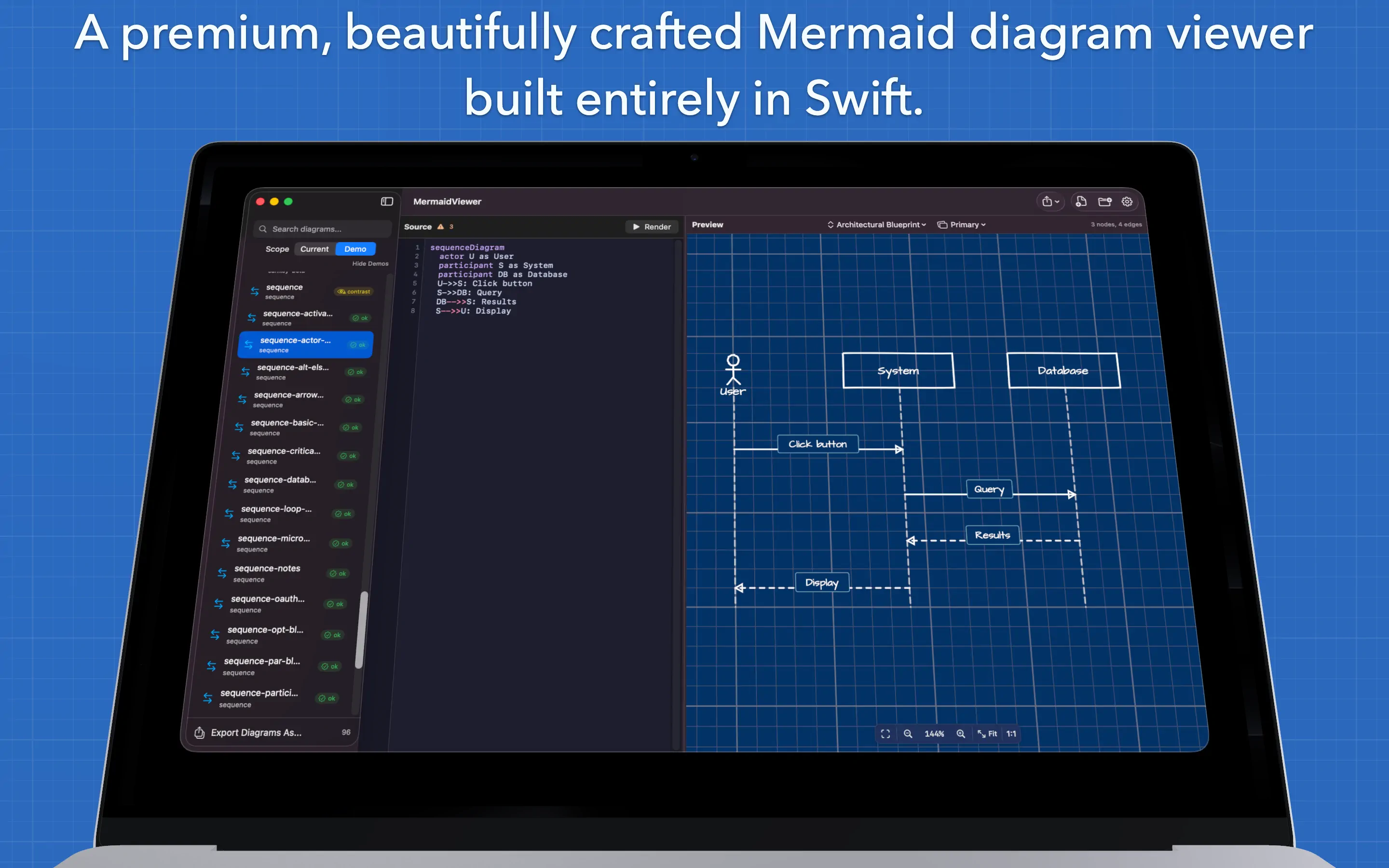
I hit ⌘+Space on a .mmd file in Finder the other day and my diagram just appeared. No app launch. No browser. No JavaScript runtime grinding away. Just a clean, themed, natively rendered Mermaid diagram floating in a QuickLook panel. That was the moment it clicked — this thing isn't an experiment anymore.
Four weeks ago, MermaidViewer was a day-old project that could barely render a flowchart without overlapping nodes. The v1.1 release overhauled the layout engine — porting Dagre's Network Simplex, Brandes & Köpf, and crossing minimization algorithms to pure Swift. That gave us layouts that actually match MermaidJS output.
Version 1.5 is a different kind of leap. Less about algorithms, more about everything else an app needs to feel real.
Quick Links
- Download: MermaidViewer v1.5 (DMG) (macOS)
- Previous: v1.0 — Rewriting MermaidJS in Swift
From One Diagram Type to Seventeen
The v1.0 release supported flowcharts. That's it. One diagram type, rendered with a naive layout engine and Bézier curves that sometimes went through nodes.
Version 1.5 supports seventeen diagram types, each with a dedicated parser and a dedicated layout engine. Not "parse-only" support where you see some text reformatted — full native rendering with proper layout algorithms for each type.
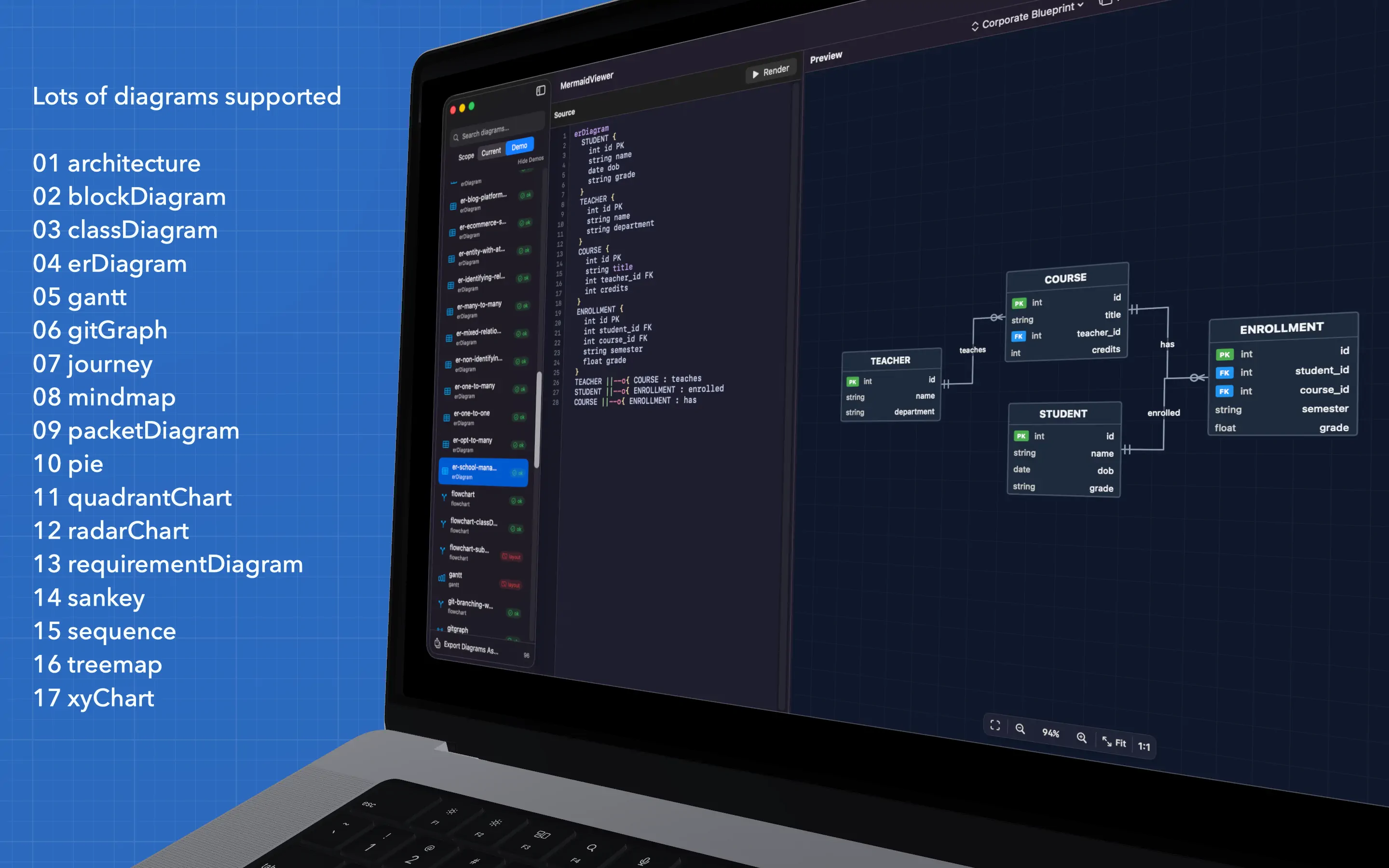
Each type is registered through a DiagramRegistry that lazy-loads parsers and layout engines on first use. Sequence diagrams get SequenceLayout. Gantt charts get GanttLayout. ER diagrams get ERDiagramLayout. No universal "just throw it at Dagre" approach — each diagram type has layout logic tailored to its visual grammar.
The C4 architecture diagrams alone (Context, Container, Component) required their own layout engine that understands system boundaries and nested containers. The Sankey layout computes flow widths proportionally. The mindmap layout uses a radial tree algorithm. These aren't trivial renderers.
Theme Studio
This is the feature I'm most excited about. MermaidViewer now ships with eleven built-in themes and a full Theme Studio for browsing and previewing them.
public enum BuiltInThemeID: String, Sendable, CaseIterable, Codable {
    case neonNights
    case neonNightsLight
    case sketch
    case oceanDepth
    case sunsetHorizon
    case nordFrost
    case monokaiPro
    case pastelDream
    case corporateBlueprint
    case architecturalBlueprint
    case retroTerminal
}
Each theme isn't just a color palette swap. A theme controls:
- Backgrounds: solid fills, linear/radial/mesh gradients, grid overlays (dots, lines, crosshatch), textures (noise, paper, canvas, linen)
- Node styles: solid fills, gradients, glassmorphism, hachure patterns — plus per-node-shape overrides
- Edge styles: stroke customization, glow effects, arrowhead variants (sharp, rounded, hand-drawn, tapered, dot), routing style (straight, orthogonal, curved, hand-drawn)
- Typography: separate font specs for nodes, edge labels, group labels, titles, and code blocks
- Effects: neon glow, hand-drawn wobble, glassmorphism blur, inner shadows
The DiagramTheme protocol captures all of this:
public protocol DiagramTheme: Sendable {
    var id: String { get }
    var name: String { get }
    var description: String { get }
    var colorMode: ColorMode { get }
    var backgrounds: BackgroundSpec { get }
    var nodeStyle: NodeStyleSpec { get }
    var edgeStyle: EdgeStyleSpec { get }
    var groupStyle: GroupStyleSpec { get }
    var typography: TypographySpec { get }
    var effects: EffectsSpec { get }
    var shapeOverrides: ShapeOverridesSpec { get }
    func overrides(for diagramType: DiagramType) -> DiagramTypeOverrides?
}
That last method — overrides(for:) — is key. Each theme can provide per-diagram-type overrides, so the same theme can render sequence diagrams with dashed lifelines while flowcharts get solid edges. The theme system isn't an afterthought bolted onto a renderer; it's woven into every drawing call.
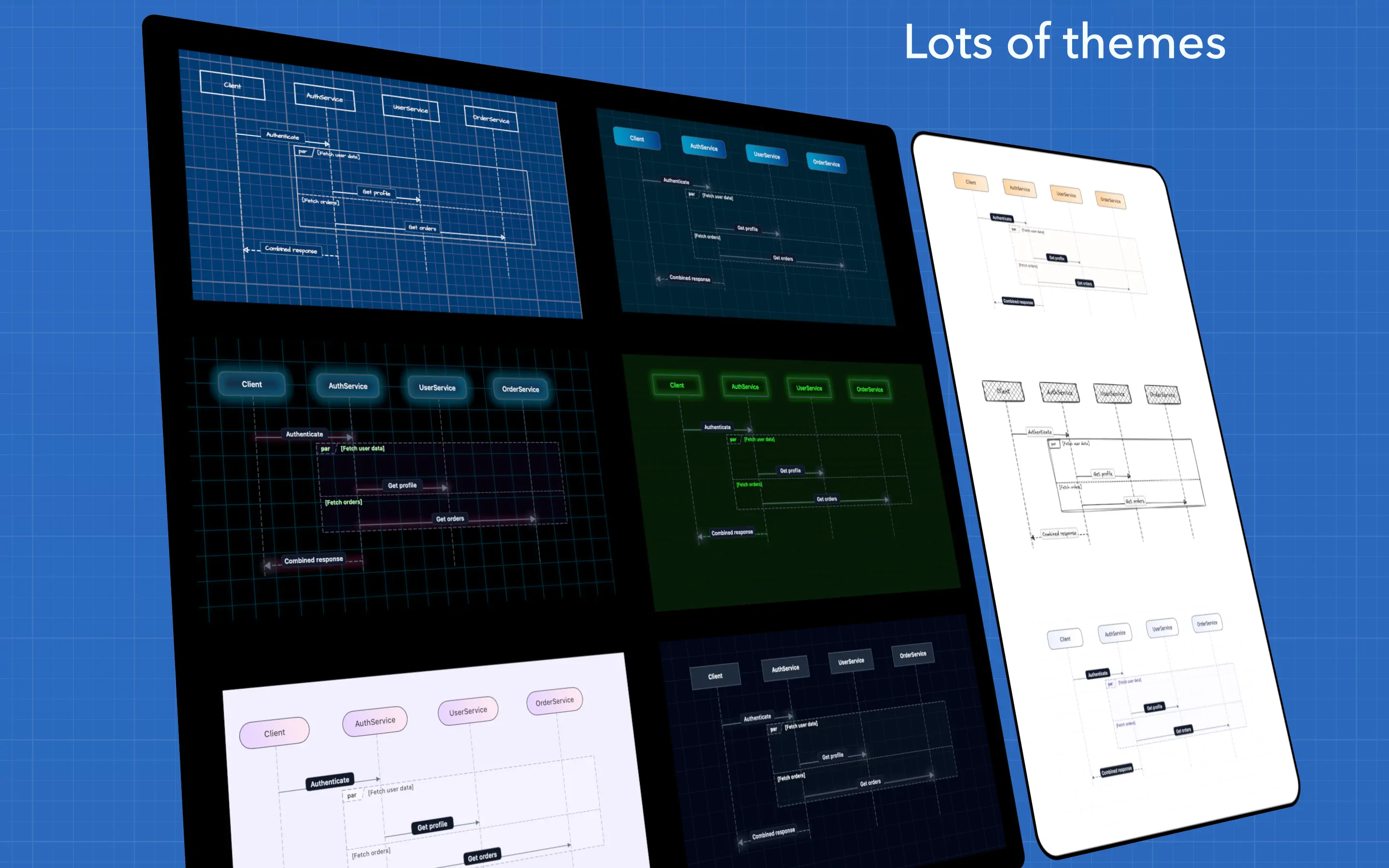
The Neon Nights theme alone — with its dark background, gradient node fills, and glow effects on edges — makes diagrams look like they belong in a cyberpunk dashboard. Sketch mode applies hand-drawn wobble to everything. Architectural Blueprint gives you a technical drawing aesthetic with grid paper and thin precise lines.
Hand-Drawn Mode: Deterministic Wobble
The sketch/hand-drawn rendering style deserves its own section because the implementation is genuinely interesting.
The core challenge: how do you make programmatically generated lines look hand-drawn, while ensuring the same diagram always renders identically? You need randomness that isn't random.
The answer is a deterministic PRNG (pseudo-random number generator) seeded from the diagram content:
private struct DeterministicRNG {
    private var state: UInt64

    init(seed: UInt64) {
        self.state = seed == 0 ? 0x9E37_79B9_7F4A_7C15 : seed
    }

    mutating func next() -> Double {
        state &+= 0x9E37_79B9_7F4A_7C15
        var z = state
        z = (z ^ (z >> 30)) &* 0xBF58_476D_1CE4_E5B9
        z = (z ^ (z >> 27)) &* 0x94D0_49BB_1331_11EB
        z = z ^ (z >> 31)
        return Double(z) / Double(UInt64.max)
    }

    mutating func jitter(_ magnitude: Double) -> CGFloat {
        CGFloat((next() * 2 - 1) * magnitude)
    }
}
This is a splitmix64-style PRNG. Same seed → same sequence of jitter values → same wobbly lines every time. The RoughPathGenerator uses this to convert each straight line segment into a cubic Bézier curve with perpendicular "bowing" displacement and endpoint jitter:
public static func roughPolyline(
    points: [CGPoint],
    wobble: WobbleSpec
) -> [Path] {
    guard points.count >= 2 else { return [] }
    let passes = wobble.multiStroke ? 2 : 1
    let seedBase = wobble.seed ?? 1
    return (0..<passes).map { pass in
        let seed = seedBase &+ UInt64(pass * 31)
        return roughSinglePass(points: points, wobble: wobble, seed: seed)
    }
}
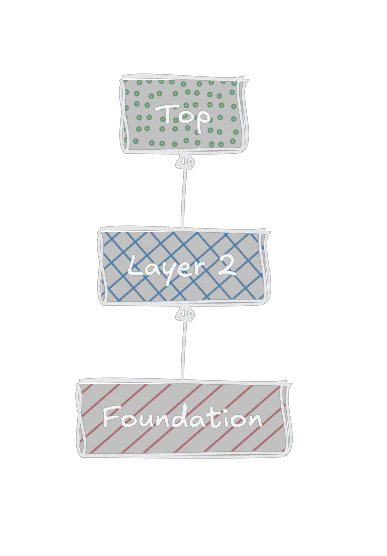
The multiStroke option draws two slightly different passes of each line, giving that "I traced this twice with a pen" look. There's also a full HachureFillGenerator that produces hachure, crosshatch, dots, zigzag, and dashed fill patterns — all with the same deterministic jitter applied.
The result: diagrams that look like they were drawn on a whiteboard, but pixel-identical across renders.
Teaching AI to See the Differences
Here's a question I kept running into: how do you know your Swift renderer actually matches MermaidJS?
Eyeballing diagrams works for a while, but it doesn't scale when you have 71 test diagrams across 17+ diagram types. And when you're using AI to help fix layout bugs, you need something the AI can actually work with — structured data about what's different and where.
So I built an automated comparison pipeline. The system takes every .mmd test file and renders it three ways:
- Swift (MermaidSwift → SVG export)
- MermaidJS (the official JavaScript library)
- beautiful-mermaid (a clean reference implementation)
Then it does pixel-level diffing with per-diagram-type acceptance targets:
const VISUAL_ACCEPTANCE_TARGETS = {
  flowchart: { swift_vs_mermaidjs: 0.82, swift_vs_beautiful: 0.92 },
  state:     { swift_vs_mermaidjs: 0.80, swift_vs_beautiful: 0.90 },
  sequence:  { swift_vs_mermaidjs: 0.78, swift_vs_beautiful: 0.88 },
  class:     { swift_vs_mermaidjs: 0.78, swift_vs_beautiful: 0.88 },
  er:        { swift_vs_mermaidjs: 0.76, swift_vs_beautiful: 0.86 },
  other:     { swift_vs_mermaidjs: 0.75, swift_vs_beautiful: 0.85 },
};
The generated report shows side-by-side comparisons with overlay diffs for every test case. Flowcharts currently score 0.974 against beautiful-mermaid — well above the 0.92 target. The system even tracks "top drift" cases — the worst-performing comparisons — so I know exactly where to focus next.

But the real power is in the debugging workflow. When I find a visual discrepancy, I point Claude at the comparison report and the JavaScript reference implementation. The AI reads the JS source, understands how the reference handles that specific case, writes a failing Swift test that demonstrates the issue, then implements the fix. The comparison report becomes the AI's eyes — structured visual feedback that turns "this diagram looks wrong" into actionable data.
It's a weird loop: AI writes the Swift code, generates the comparison report, reads the report, identifies problems in its own code, and fixes them. I mostly just run the pipeline and review the results.
QuickLook & Export
The QuickLook extension is one of those features that feels disproportionately satisfying for the amount of code involved. Select a .mmd file in Finder, press Space, see a rendered diagram. It supports .mmd, .mermaid, .mm, and .merm file extensions.
The implementation is a QLPreviewProvider that runs the full MermaidSwift parse → layout → render pipeline and returns a PDF:
final class PreviewProvider: QLPreviewProvider, QLPreviewingController {
    func providePreview(
        for request: QLFilePreviewRequest
    ) async throws -> QLPreviewReply {
        guard QuickLookThemePreferences
            .isSupportedMermaidFile(request.fileURL) else {
            throw CocoaError(.featureUnsupported)
        }

        let renderResult = try QuickLookRenderer.render(
            fileURL: request.fileURL
        )

        if let pdfData = renderResult.pdfData {
            return QLPreviewReply(
                dataOfContentType: .pdf,
                contentSize: renderResult.contentSize
            ) { _ in pdfData }
        }

        // Fallback: plain-text source
        return QLPreviewReply(
            dataOfContentType: .plainText,
            contentSize: .zero
        ) { reply in
            reply.stringEncoding = .utf8
            return renderResult.sourceData
        }
    }
}
The QuickLook extension renders with whatever theme you've selected in the main app — it reads your preferences via shared UserDefaults. So if you're using Neon Nights, your Finder previews are Neon Nights too.
For export, MermaidViewer now supports three formats:
- SVG: A 2,000+ line renderer that produces full-fidelity, theme-aware SVG output with proper CSS styling, gradient definitions, and per-diagram-type rendering paths.
- PNG: With a clever trick for transparent backgrounds — it renders the diagram twice (once on black, once on white) and computes per-pixel alpha from the difference. Clean transparency without needing a compositing engine.
- PDF: CoreGraphics-based rendering with coordinate system flipping to match SwiftUI's top-left origin. Crisp vector output at any zoom level.
What's Next
The immediate roadmap:
- App Store submission — MermaidViewer is getting close to App Store readiness
- iPad version — the library is platform-agnostic, the UI needs adaptation
- Performance for large diagrams — some 50+ node diagrams take noticeable time
- More diagram type polish — several beta diagram types (architecture, block, radar) need refinement
- Custom theme creation — the Theme Studio currently browses built-ins; full editing is next
Try It
If you want to give it a spin, grab the DMG from the link above. Open any .mmd file or paste Mermaid syntax directly. Try switching themes. Try the hand-drawn mode. Export to SVG and open it in your browser.
A lot of the diagram types go beyond what I'd consider "stable" — Gantt charts have some date-parsing quirks, C4 diagrams are a work in progress, and the architecture layout occasionally gets confused by circular dependencies. But flowcharts, sequence diagrams, class diagrams, ER diagrams, and state diagrams are solid.
Four weeks from zero to twenty-three diagram types, eleven themes, three export formats, and a QuickLook extension. All built by describing features to Claude and iterating on the results. I still don't write Swift by hand. I just keep raising the bar on what I ask for.
Daniel Wanja is a developer and founder of Nouvelles Solutions, Inc. When not teaching AI to compare its own diagram output against JavaScript references, he's figuring out which of the eleven built-in themes to use as his default. (It's Neon Nights. It's always Neon Nights.)