MermaidViewer 1.9: From a Prompt to an Editable Diagram
Create and refine Mermaid diagrams with on-device Apple Intelligence, then edit them on a native Mac canvas. A walkthrough of prompts, large pasted specifications, context handling, and the Swift implementation behind MermaidViewer 1.9.
I usually know what a diagram should say before I remember how to write its Mermaid syntax. There are users, posts, and comments. A frontend calls an API. An order moves from pending to shipped. Getting that idea out of my head should be the easy part.
With MermaidViewer 1.9, I can describe the diagram, let Apple Intelligence build a first draft, and then refine it with another request. When I want to be precise, I can switch to the source or use the visual editor. All three work on the same Mermaid document.
This release also brings the visual editor onto the native canvas introduced in 1.8. That took a little more work than adding a chat box! Here is how it works, what I can ask it to do, and some of the implementation decisions behind it.
Download MermaidViewer 1.9 for macOS.
The app supports macOS 14 and later. The new assistant requires macOS 26.4 or later, a device that supports Apple Intelligence, and its on-device model to be enabled and ready. Source editing and the visual editor remain available when the assistant is unavailable.
Start with an idea
Create a new file and select Assistant above the editor. The prompt box says:
Start typing your diagram idea here... (Shift + Enter for new line)
Choose a diagram type, or leave it on Auto. Press Enter or click Send. Shift + Enter adds another line, so a request can include a short list of requirements without submitting halfway through.
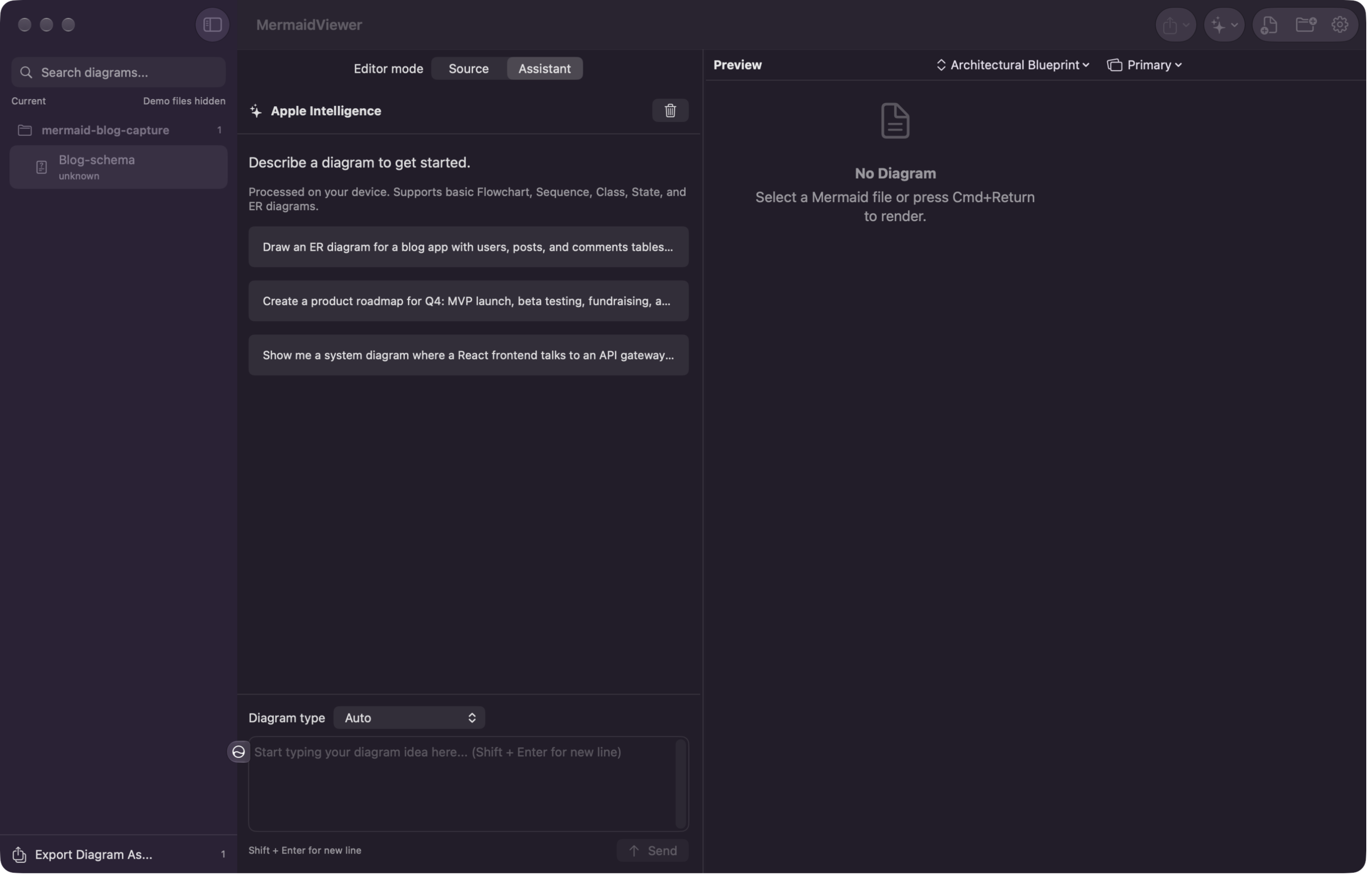
The assistant lives beside the preview. The example buttons put a request into the composer so it can be adjusted before sending.
The first version supports basic Flowchart, Sequence, Class, State, and Entity Relationship diagrams. The qualifier “basic” matters: this is a useful subset of Mermaid, rather than a promise that every possible Mermaid construct can be generated or edited through a prompt.
My starting example is a blog database:
Draw an ER diagram for a blog app with users, posts, and comments tables, where each post belongs to a user and each comment belongs to a post.
That describes the relationships, but leaves some database choices open. For the screenshots in this post, I made the request more explicit: use users, posts, and comments as entity IDs, give each an int id PK, and include int user_id FK in posts and int post_id FK in comments.
In the captured result, the model used singular names—User, Post, and Comment—despite the requested IDs. Even an explicit request needs a check. If a detail matters, put it in the request and verify the result. Otherwise, review the draft and its assumptions before treating it as your design. A syntactically valid diagram can still express the wrong relationship.
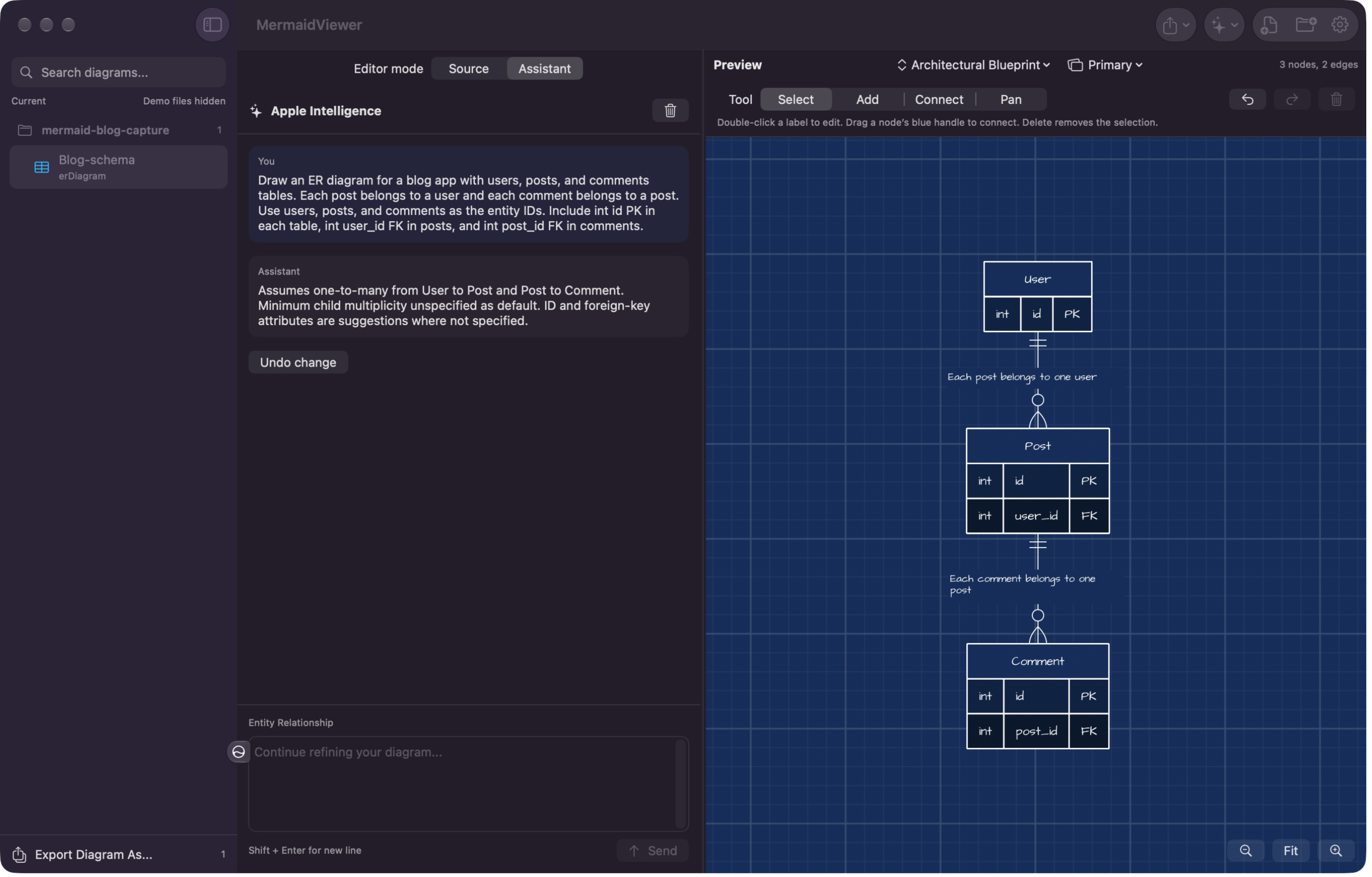
An actual on-device generation using the more explicit blog-schema prompt. The app validates the candidate before applying it to the document.
Keep refining the same document
Once the diagram exists, the composer changes to:
Continue refining your diagram...
For a small refinement example, start with this flowchart in Source, then switch to Assistant:
flowchart TD
    A[Start]
Now ask:
Add a node B labeled Finish and connect A to B.
I don't have to describe the whole flowchart again. The assistant receives the current source and plans an edit against it. After the change succeeds, Undo change is available in the conversation. The edit also participates in the document's normal Undo behavior.
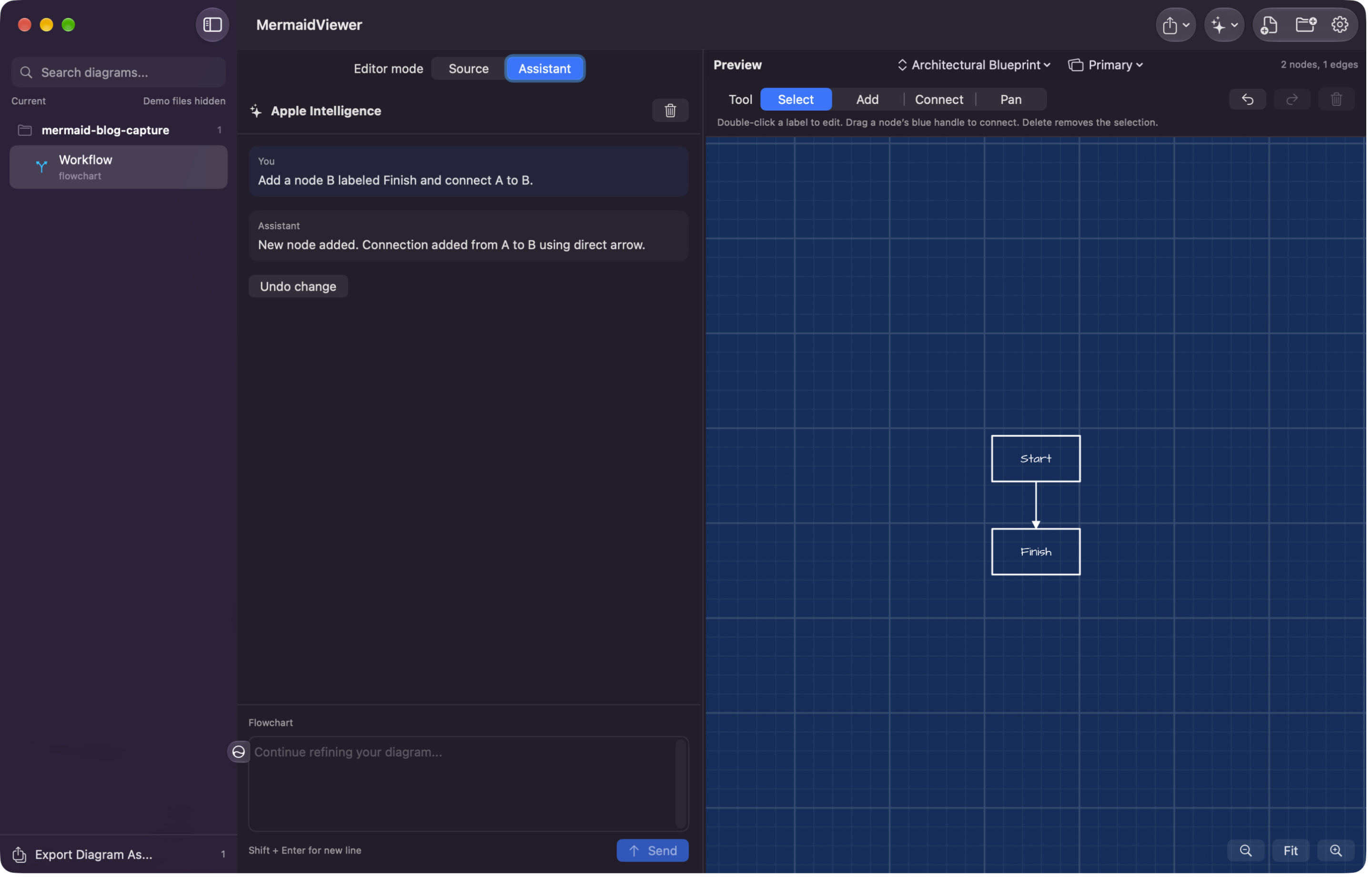
The second request updates the existing diagram. Switching to Source shows ordinary Mermaid text, including the new node and connection.
The conversation is kept separately for each open document during the app session. Switching documents cancels work for the previous one. There is also a Stop button, and a failed request keeps the prompt available for editing and retrying.
The chat is a working aid, not a second document format. Save the file and you have Mermaid source you can put in a README, keep in version control, or open elsewhere. The conversation itself is not a saved chat archive.
A few prompts to try
Beyond the blog database, these are good starting points for the five supported types.
A system overview — Flowchart
Show me a system diagram where a React frontend talks to an API gateway and connects to three microservices on AWS Lambda. Name the services Users, Posts, and Search.
The technology names should be part of the labels. This is a flowchart describing the system, rather than a deployment plan or a set of AWS resources ready to provision.
A product roadmap — Flowchart
Create a product roadmap for Q4: MVP launch, beta testing, fundraising, and a global rollout. Show the milestones in that order. Do not invent dates.
The assistant represents roadmaps as milestone flowcharts. It does not generate a dated Gantt chart through this interface. Specifying the order also avoids making the model guess which milestone depends on which.
A request and response — Sequence
Show a sequence where a Browser requests a page from a Server and the Server replies with HTML.
An inheritance relationship — Class
Create a class diagram with an Animal class and a Dog class that inherits from Animal.
An order lifecycle — State
Show an order progressing from Pending to Shipped to Delivered, including start and end markers.
Start small, look at the result, and add one clear refinement at a time. Large nested structures, complex sequence blocks, class relationship multiplicities, and changing an existing diagram into another type are outside the assistant's initial scope. Renaming classes and ER entities through the assistant is also not supported yet. The Source editor is still there for those cases.
Under the hood: ask for data, then write Mermaid
I have been exploring Apple's on-device models in apps such as AI Rename. MermaidViewer gave me another good use for them: turning a short description into a small, structured result.
The tempting implementation would be to ask the model for a block of Mermaid and paste its answer into the editor. I chose a more controlled approach. The model returns Swift data structures; the app writes the Mermaid syntax.
Apple's Foundation Models framework supports guided generation into custom Swift types. Here is a small type from the implementation:
@Generable private struct LabeledConnection {
    @Guide(description: "Exact ID of an element declared in this diagram.")
    var from: String
    var to: String
    var label: String
}
There are separate response types for flowcharts, sequences, states, classes, and ER diagrams. They describe the things those diagrams actually contain: participants and messages, states and transitions, or entities and attributes. Array limits keep the requests focused. Flowchart shapes, for example, are restricted to rectangles, rounded rectangles, and diamonds.
The actual model call happens in a fresh session. This excerpt is inside the generic helper that requests one of those response types:
let session = LanguageModelSession(model: model, instructions: instructions)
let response = try await session.respond(
    to: prompt,
    generating: type,
    options: GenerationOptions(
        temperature: 0.2,
        maximumResponseTokens: outputTokens
    )
)
return response.content
The returned data becomes a DiagramDraft. Before serializing it, the app checks identifiers, duplicate IDs, relationship endpoints, and supported operators. Labels and members go through the serializer's syntax checks as well. A separate Mermaid renderer then checks that the resulting source can actually render before it reaches the document.
ER generation uses two requests: one for entities and attributes, then another for relationships using the known entity IDs. That keeps each schema smaller and gives relationship generation a concrete set of endpoints.
This is an initial, experimental assistant. During testing for this post, an ER attribute request produced an unwanted entity and an incorrect attribute type. Another refinement was rejected by the application's validation. These checks catch malformed output and invalid references; they do not prove that the model understood every detail of a request. Review both the diagram and the source, and use Undo when the result is wrong. That is why I keep the result visible and editable.
The context window is part of the design
One of my first concerns was the person who pastes an entire specification into that small chat box. A text editor can accept a large paste. That does not mean the on-device model can process it.
The context budget includes more than the user's text: instructions, the generated schema, the current diagram, and room for the answer all matter. Apple documents the available APIs and budgeting considerations in its guide to managing the on-device model's context window.
MermaidViewer asks the model for its context size and counts tokens before sending a request. Here is a simplified version of the budget check:
let instructionTokens = try await model.tokenCount(for: Instructions(instructions))
let schemaTokens = try await model.tokenCount(for: T.generationSchema)
let inputTokens = try await model.tokenCount(for: Prompt(prompt))

// Reserve space for the response and protocol/framing overhead.
guard instructionTokens + schemaTokens + inputTokens
        + outputTokens + 512 <= model.contextSize else {
    throw DiagramAssistantError.contextLimit
}
I also avoid sending the entire growing chat history back into one long-lived model session. A refinement uses a fresh session with the current Mermaid source and the latest request. The source represents the diagram's current state. A constraint from an earlier message that was never captured in the source may need to be repeated.
Version 1.9 handles larger typed or pasted specifications by dividing the work across fresh on-device sessions. It follows the approach in Apple's TN3193: Managing the on-device foundation model’s context window: measure the budget, break up work that does not fit, and assemble the results in the app. A 4,096-token context is a limit on each model session, not the size of the text I can paste into MermaidViewer.
For example, I can put the goal at the beginning, then paste the specification below it:
Create an ER diagram for the publishing part of this specification.
Preserve entity names, primary and foreign keys, and cardinalities.

[Paste the plain-text specification here.]
Putting the goal first helps because the processor carries the opening context into each section. Choosing ER explicitly also gives passage selection a clear scope. This works with text typed or pasted into the composer; there is no Word or PDF import.
Read the specification in sections
A small request takes the direct generation path. When a request exceeds the measured budget, the app splits the full text into sections, preferring line and word boundaries. Each section is capped at 1,800 characters and checked against the token budget, with a little overlap from the previous section to help with references at a boundary. The character cap keeps the selection task manageable; the token count determines whether the actual request fits.
Inside a section, Swift numbers the source passages. The model's job is to select the numbers that contain diagram requirements. Its response type is deliberately small:
@Generable private struct SpecificationPassagesResponse {
    @Guide(.maximumCount(8)) var passages: [Int]
}
That was a useful implementation lesson. Asking the model to copy or summarize a requirement introduced another opportunity to change a name or lose a detail. Returning passage numbers lets Swift retrieve the exact original wording, along with its character position in the pasted text. If selection reaches the array limit or overflows the context, the affected section is split again. The app scans every section on a successful run, including sections with no selected passages.
Swift then assembles the selected passages into a brief for diagram generation. Duplicate wording can share an entry, but its separate source positions are retained so repeated events and ordering are still visible. The brief goes through another budget check with the diagram schema and, for a refinement, the current source.
Check the draft and show the evidence
After generating a candidate, the app runs cross-section consistency checks and checks the result against each selected passage. The assistant shows progress while it works, and Stop cancels the request. When processing finishes, the conversation includes the section count and expandable source passages with their original positions.
If the checks flag a possible conflict, omission, or uncertain result, the document stays unchanged. Review draft opens the proposed diagram alongside the review notes, source passages, and Mermaid source. I can apply the reviewed draft or discard it. Applying it checks that the original document has not changed while the assistant was working, and creates one undoable change.
These checks use the model too. They can miss a requirement or flag a correct relationship, so scanning every section is not a guarantee that every detail made it into the diagram. The source passages make that selection visible and give me something concrete to compare with the result.
Larger input still needs a focused diagram
The composer accepts up to 200,000 characters. Processing also has bounds: 128 sections, 120 distinct selected passages, 192 model calls including checks and retries, and a ten-minute deadline. Dense specifications can reach a limit well before the character ceiling. The generated diagrams remain deliberately small, with schema-specific limits of 12–20 elements.
If the selected brief cannot fit, MermaidViewer asks me to focus on a smaller workflow, subsystem, or group of entities. It keeps the full paste and the current document. It does not shorten the brief by silently dropping selected requirements, and it does not apply a partial result when processing fails.
In one development test, a 25,793-character specification was processed in 15 sections with a 4,096-token budget enforced for each call. The resulting flowchart retained relationships from both the beginning and the end of the text. That run took about 52 seconds on my Mac; larger input involves several model calls, and timing and output quality will vary.
Follow-up requests still use the current Mermaid source and the latest request. The app does not retrieve an earlier specification automatically, so I repeat any constraint that is not already expressed in the diagram. Everything in this workflow runs on device, including passage selection and the review checks.
The visual editor edits source, too
After generating a diagram, I often want to make a specific change without describing it in another sentence. That is where the visual editor comes in.
Switch to Source, choose Select in the toolbar above the preview, and click an element on the canvas. The editing tools support selecting, adding, deleting, and connecting elements in the supported diagram types. Labels can be edited where the source adapter supports that operation.
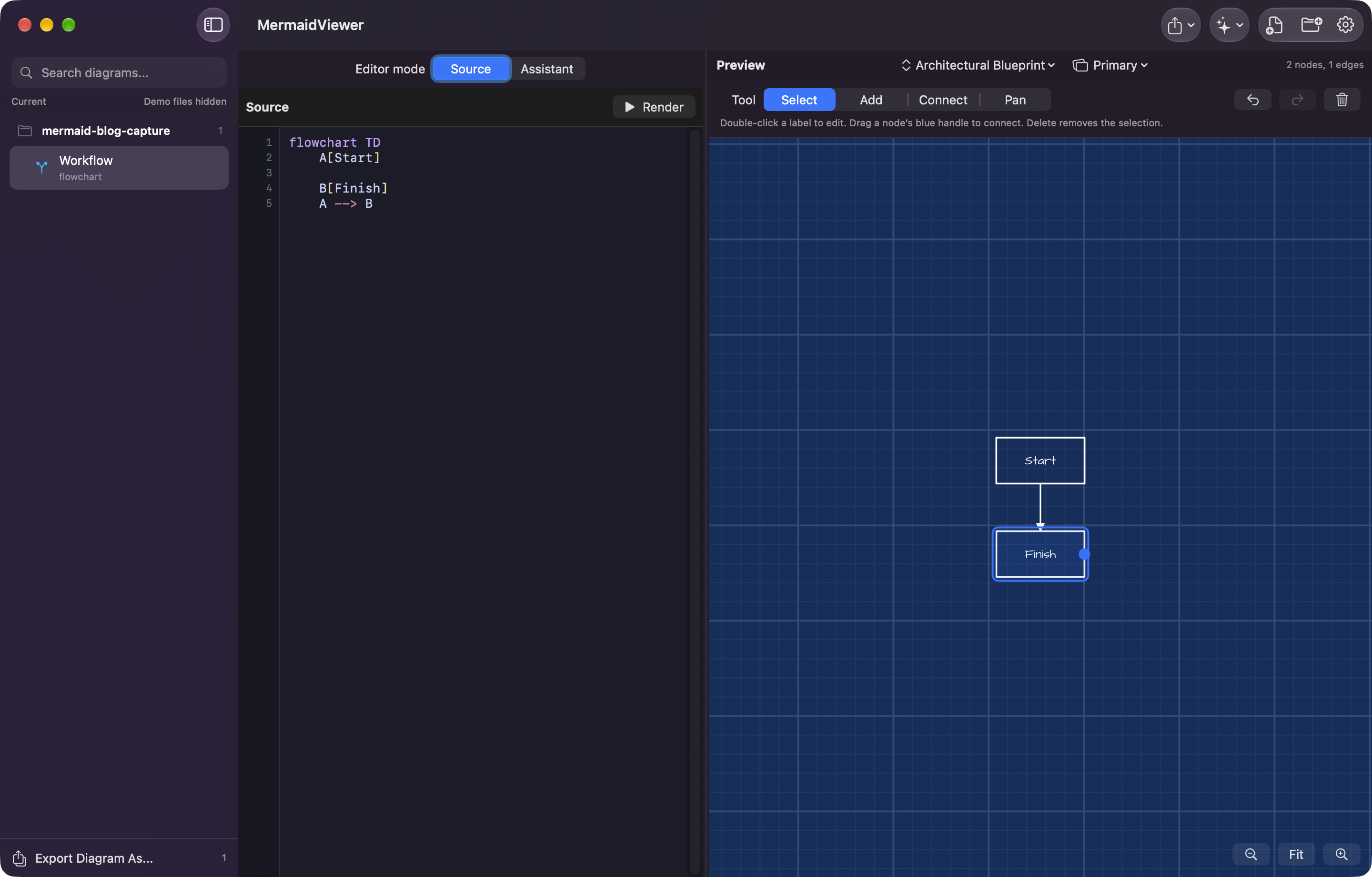
The refined flowchart in Source and visual edit mode. The canvas selection refers back to a Mermaid node, rather than an independent drawing object.
The implementation has two maps to keep aligned. The native scene contains diagram elements and their geometry for hit testing. The source map connects Mermaid element IDs to the lines that define them.
A click first goes from window coordinates into diagram coordinates, accounting for pan and zoom. Hit testing finds the scene element. The editor turns the action into a typed operation, and the appropriate diagram adapter produces text patches.
For example, the visual edit engine can add a connection like this. This is a shortened example of the edit-and-validate path; source contains the existing flowchart and renderer is a MermaidWebRenderer:
let result = try MermaidVisualEditEngine().apply(
    operation: .addConnection(AddConnectionOperation(
        sourceID: "Gateway",
        targetID: "Search",
        operatorToken: "-->"
    )),
    source: source,
    diagramType: .flowchart,
    validateWithParse: false
)

try await renderer.validate(result.updatedText)
That final argument skips the original Swift parser in this path because the candidate is validated with the bundled Mermaid.js renderer next. The app then checks that the document and its revision still match before applying the patch and registering Undo.
The assistant's refinement path uses the same editing engine. It proposes local operations such as adding an element, adding a connection, or adding a member. Supported edits patch the existing source instead of serializing the entire document again, so unrelated comments and styling can stay in place. If an edit cannot be applied safely, the operation fails rather than replacing unrelated content.
This also protects work done while the assistant is thinking. The app captures the document ID, revision, and source at submission. If any of them no longer match when the answer is ready, that answer cannot overwrite the newer document.
Why Mermaid.js still calculates the layout
The other half of this release builds on the change I introduced in 1.8.
I originally wanted to implement the whole Mermaid pipeline in Swift. After many iterations on node placement, edge routing, spacing, and labels, I still couldn't consistently match Mermaid.js across real diagrams. Fixing one case often exposed another. Eventually, I had to be practical about it.
Mermaid.js calculates the layout, and the Mac draws the diagram natively. A bundled, offscreen WebView parses the source and measures its geometry. The app extracts a scene containing paths, text, and diagram element metadata. Core Graphics and Core Text handle the visible canvas.
That gives the visual editor geometry and element IDs to work with, while keeping native pan and zoom, themes, backgrounds, and PNG/PDF export. The normal macOS preview now supports visual editing directly; it no longer requires switching back to the original Swift canvas.
The rendering runtime is bundled with the app and works locally. The new assistant also uses the on-device model, with no API key or cloud fallback. Once Apple's model is ready, neither diagram generation through this assistant nor normal rendering requires sending the diagram to a remote service. Quick Look continues to use the original Swift rendering pipeline, so its output can differ from the main app.
I keep a developer comparison mode and a snapshot harness to compare the native scene against a Mermaid.js WebView reference. The latest review still found examples with label overlap, contrast problems, and unsupported syntax. Better layout is progress; it isn't a claim that every diagram is perfect.
Give it a try
My favorite part of this workflow is being able to move between an idea, a small request, and a precise source edit without starting over. Apple Intelligence gets a draft onto the screen. Mermaid keeps it portable. The native editor gives me another way to work on the details.
Download MermaidViewer 1.9, try one of the prompts above, and let me know where it helps or where it gets stuck. A small example that reproduces a problem is particularly useful.