Folder Analyzer: Understanding Where Your Storage Goes with Beautiful Visualizations
A deep dive into building Folder Analyzer, a native macOS app that scans millions of files and visualizes disk usage with interactive treemaps, all powered by Swift concurrency
Ever wondered where all your disk space went? That massive download folder you keep meaning to clean up? The node_modules directories scattered across dozens of projects? I built Folder Analyzer to answer that question—a native macOS app that scans your folders at blazing speed and presents the results through stunning interactive visualizations.
Quick Links
- Download: Folder Analyzer v1.2 (DMG) (4.5 MB)
The Problem: Invisible Storage Consumption
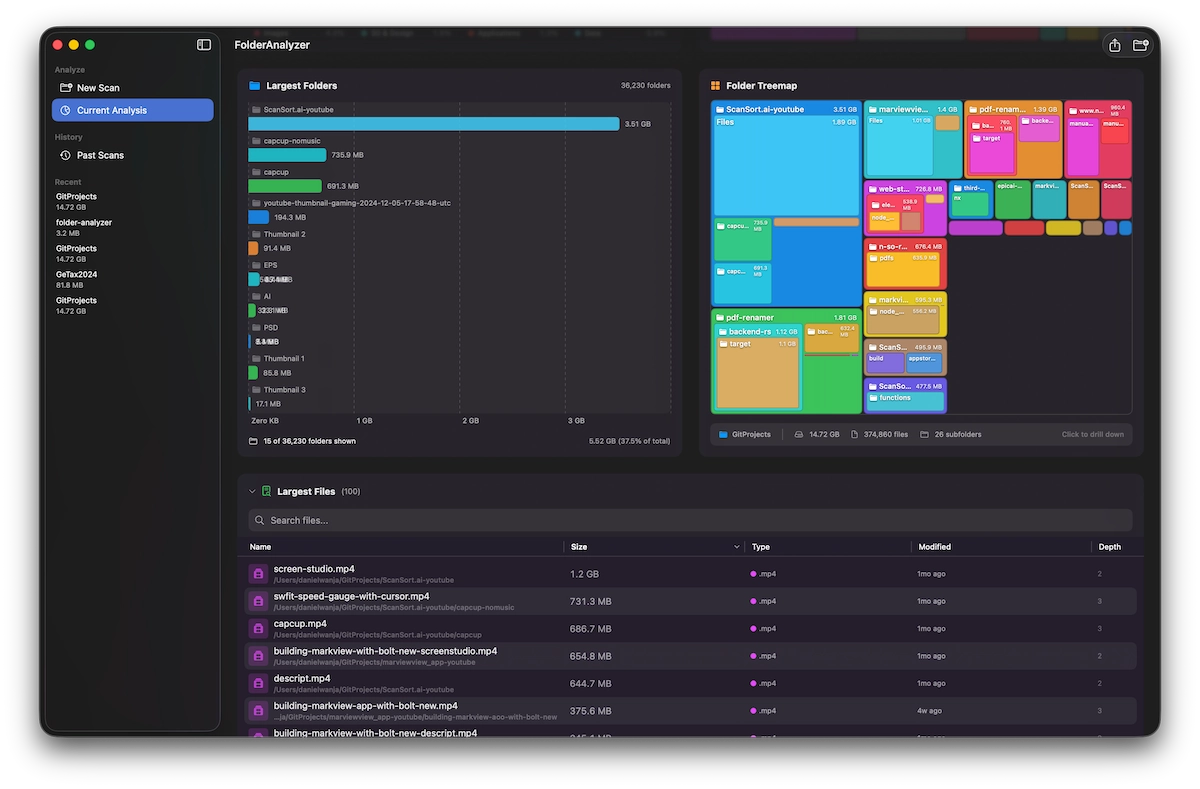
We've all been there. Your Mac complains about low storage, but you can't figure out where it's all going. The built-in storage management tools show high-level categories, but they don't tell you which specific folders or files are the culprits. You need to see the data spatially—to understand at a glance that your GitProjects folder is consuming 14.72 GB across 374,860 files in 26 subfolders.
That's exactly what Folder Analyzer shows you.
See Your Storage at a Glance
The app features an interactive treemap visualization that breaks down your folders by size. Each rectangle represents a folder or file, with size proportional to disk usage. The color coding helps you quickly identify different projects and directories.
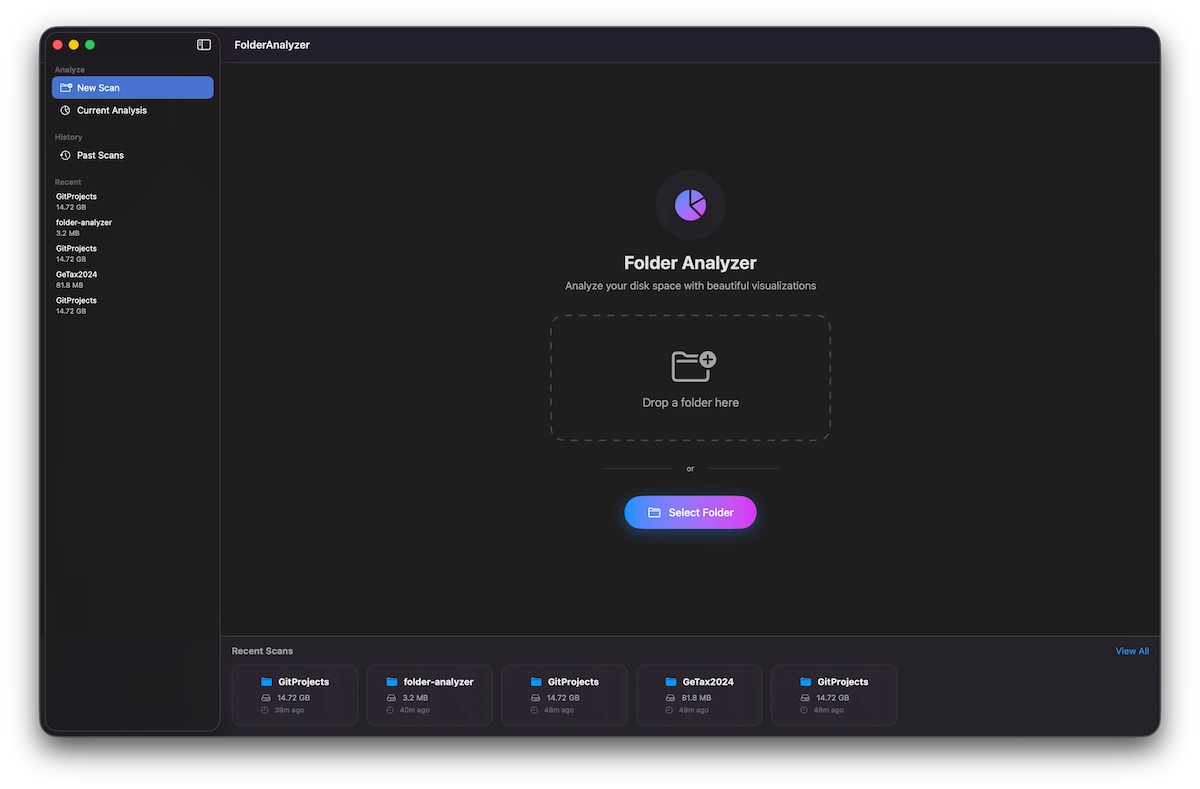
Simply drag and drop any folder onto the app, or click "Select Folder" to begin analysis. Recent scans appear at the bottom, making it easy to re-analyze frequently checked directories.
Built for Performance
Here's where things get interesting from a technical perspective. When I started building Folder Analyzer, I knew performance would be critical. Nobody wants to wait 10 minutes to scan their home directory.
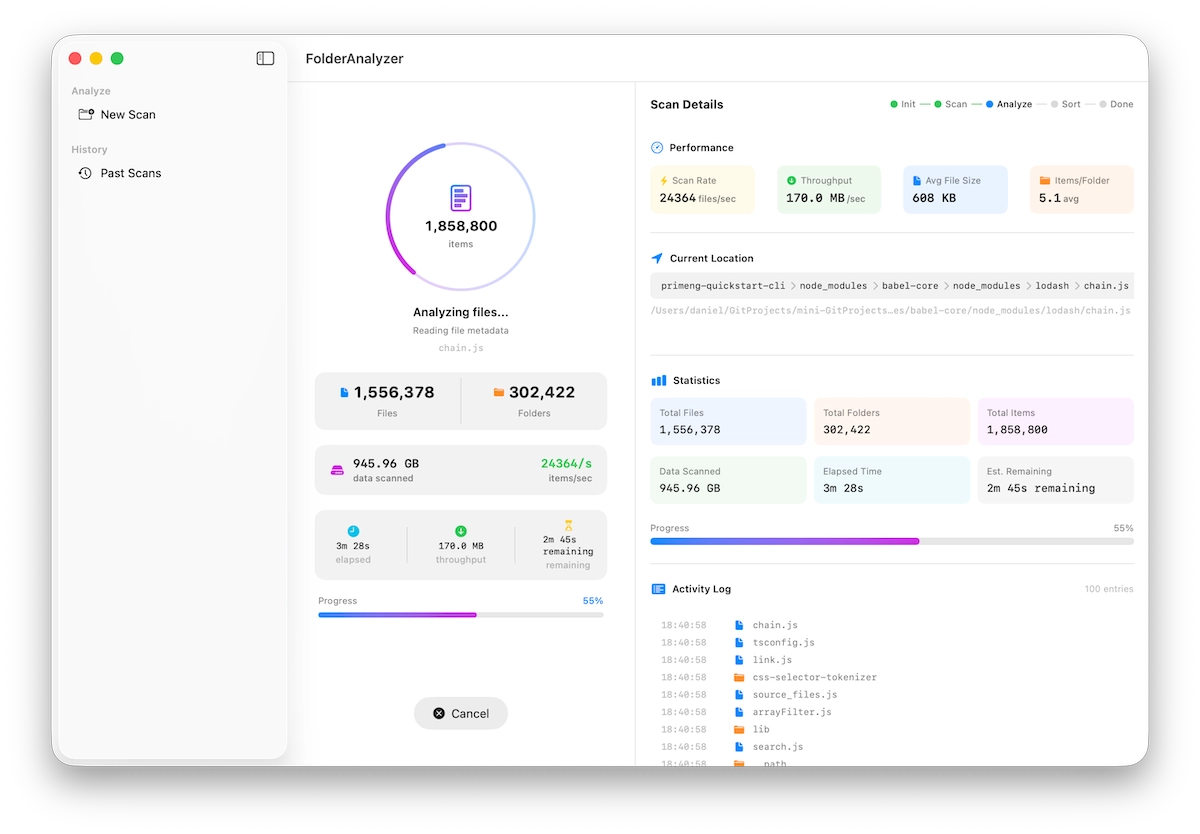
Using Swift's modern concurrency model with async/await and TaskGroup, Folder Analyzer can:
- Scan at rates exceeding 68,000 files per second during discovery
- Process 100,000+ files in under 10 seconds
- Handle directories with over 1.5 million files across 300,000+ folders
- Analyze nearly 1 TB of data in just a few minutes
The scanning process happens in two phases:
- Discovery Phase: Rapidly enumerate all files and folders, building the directory tree
- Analysis Phase: Read file metadata, calculate sizes, and categorize files
Real-time progress keeps you informed throughout, showing current location, throughput, and estimated time remaining.
Smart File Categorization
Over 200 file types are automatically organized into 12 categories:
- Images: PNG, JPEG, WebP, SVG, PSD, and more
- Videos: MP4, MOV, MKV, WebM
- Audio: MP3, WAV, FLAC, AAC
- Documents: PDF, DOC, XLS, PPT
- Code: Swift, TypeScript, Python, Rust
- Archives: ZIP, TAR, DMG, RAR
- Applications: APP bundles, executables
- Fonts: TTF, OTF, WOFF
- 3D Models: OBJ, FBX, GLTF
- Data: JSON, XML, YAML, databases
- System: Configuration files, caches
- Other: Everything else
This categorization uses Swift Charts to show you exactly which types of files consume the most space.
The Technical Stack
Folder Analyzer is built entirely in Swift and SwiftUI, taking full advantage of Apple's latest frameworks:
// Modern Swift concurrency for parallel scanning
func scanDirectory(_ url: URL) async throws -> FolderNode {
    try await withTaskGroup(of: FolderNode?.self) { group in
        for item in contents {
            group.addTask {
                if item.isDirectory {
                    return try? await scanDirectory(item)
                } else {
                    return FolderNode(file: item)
                }
            }
        }
        // Collect results...
    }
}
Key Technologies
- SwiftUI for the entire user interface
- Swift Charts for category breakdowns and trend visualizations
- FileManager with efficient directory enumeration
- Swift Concurrency (
async/await,TaskGroup) for parallel processing - Codable for scan history persistence
- SwiftData for historical scan storage
Treemap Algorithm
The treemap visualization uses a squarified treemap algorithm, which produces rectangles with aspect ratios as close to 1:1 as possible. This makes the visualization easier to read compared to slice-and-dice layouts that can produce very thin rectangles.
// Squarified treemap layout
func layoutSquarified(items: [FolderNode], in rect: CGRect) -> [TreemapRect] {
    var remaining = items.sorted { $0.size > $1.size }
    var results: [TreemapRect] = []
    var currentRect = rect

    while !remaining.isEmpty {
        let row = squarify(remaining, in: currentRect)
        results.append(contentsOf: layoutRow(row, in: currentRect))
        remaining.removeFirst(row.count)
        currentRect = remainingRect(after: row, in: currentRect)
    }

    return results
}
Features Deep Dive
Interactive Drill-Down Navigation
Click any folder in the treemap to drill down into its contents. The breadcrumb navigation lets you easily move back up the hierarchy. This makes exploring deeply nested directory structures intuitive.
Largest Files Table
The bottom section shows your largest files in a sortable table. In my GitProjects folder, the biggest culprits were video files—screen recordings and tutorial footage consuming over 1 GB each. The table includes:
- File name and path
- Size in human-readable format
- File type
- Last modified date
- Directory depth
Double-click any file to reveal it in Finder for quick cleanup.
Scan History & Comparison
Every scan is automatically saved. You can:
- View past scans to track changes over time
- Compare two scans side-by-side to see what changed
- Export scan data to JSON or CSV for further analysis
Dark Mode Support
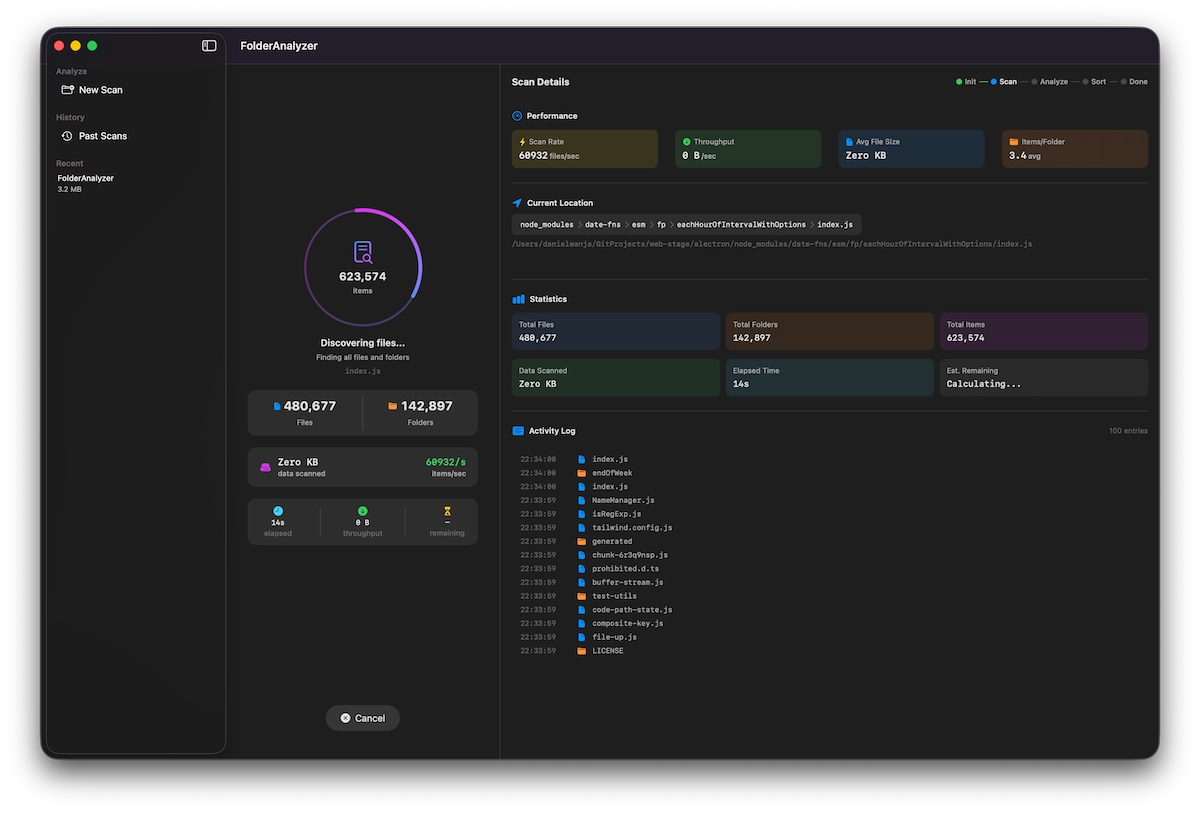
Folder Analyzer fully supports macOS dark mode, with carefully chosen colors that make the treemap visualization pop against the dark background.
Real-World Results
Here's what I found scanning my own GitProjects folder:
| Metric | Value |
|---|---|
| Total Size | 14.72 GB |
| Total Files | 374,860 |
| Total Folders | ~26 subfolders at root |
| Largest File | screen-studio.mp4 (1.2 GB) |
| Scan Time | ~37.5% of total at 5.62 GB |
The treemap immediately revealed that my ScanSort.ai-youtube folder was the biggest consumer at 3.51 GB—mostly video files for tutorials I'd recorded. The marviewview and pdf-renamer project folders were next, followed by various backup and build directories.
Privacy First
Folder Analyzer runs completely locally on your Mac. No data is ever sent to any server. Your file system information stays on your device, which is why the app works perfectly offline and respects your privacy.
The Journey
Building Folder Analyzer was a fun exercise in optimization. The initial naive implementation was too slow for large directories. Getting it to scan millions of files in reasonable time required:
- Parallel directory traversal using TaskGroups
- Efficient memory management to avoid loading entire trees into memory
- Progressive UI updates that don't block the main thread
- Smart caching of file metadata during enumeration
The result is an app that feels snappy even when analyzing massive directory hierarchies.
Try It Yourself
Ready to discover where your storage is going? Download Folder Analyzer for free and start visualizing your disk usage today.
Whether you're a developer drowning in node_modules, a photographer with thousands of RAW files, or just someone who wants to understand their storage better—Folder Analyzer gives you the visibility you need to take control of your disk space.
Folder Analyzer requires macOS 15 or later and is available as a free download.