DMGMaker: Creating Beautiful Disk Images for macOS App Distribution
How I built a SwiftUI app that turns the mundane task of DMG creation into a delightful visual experience with drag-and-drop simplicity, AI-powered backgrounds, and pixel-perfect previews.
If you've ever shipped a macOS app outside the App Store, you know the pain: creating a professional-looking DMG (disk image) file for distribution. The traditional approach involves arcane hdiutil commands, cryptic AppleScript incantations, and a lot of trial and error to get that perfect "drag-to-Applications" experience.
I wanted something better. Something that lets developers see exactly what their DMG will look like before they create it. Something that makes the whole process as simple as drag-and-drop.
So I built DMGMaker.
Quick Links
- Download: DMGMaker v1.1 (DMG) (macOS, 4.7 MB)
What is DMGMaker?
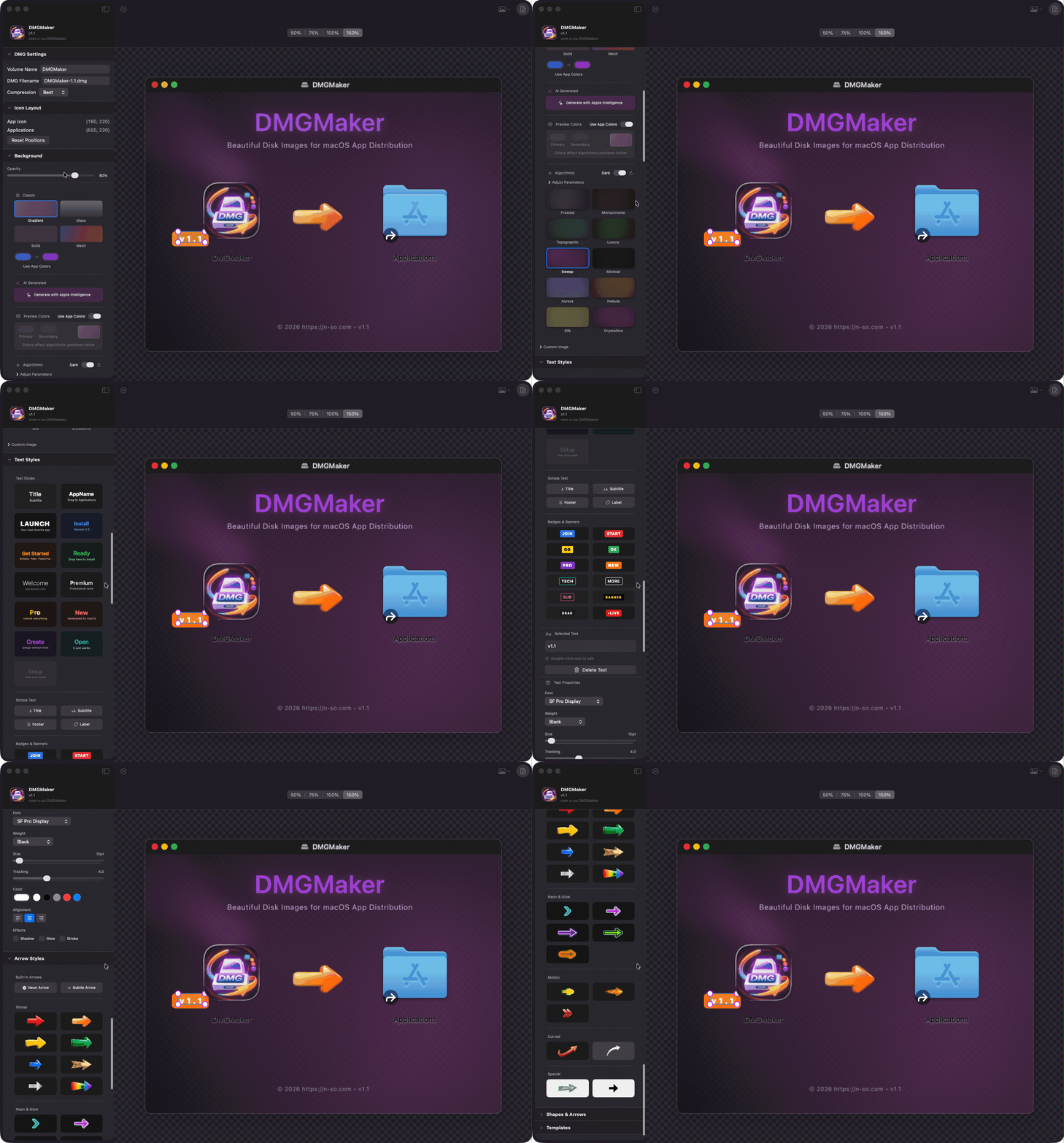
DMGMaker is a native macOS application built with SwiftUI that creates beautiful, professional disk images for distributing macOS applications. The core philosophy is simple: Drop → Preview → Create.
The app turns anything you drop in—most commonly a .app bundle—into a polished "drag-to-Applications" DMG with excellent defaults, minimal configuration, and a pixel-perfect preview of exactly what users will see when they mount your DMG.
Features
Core Functionality
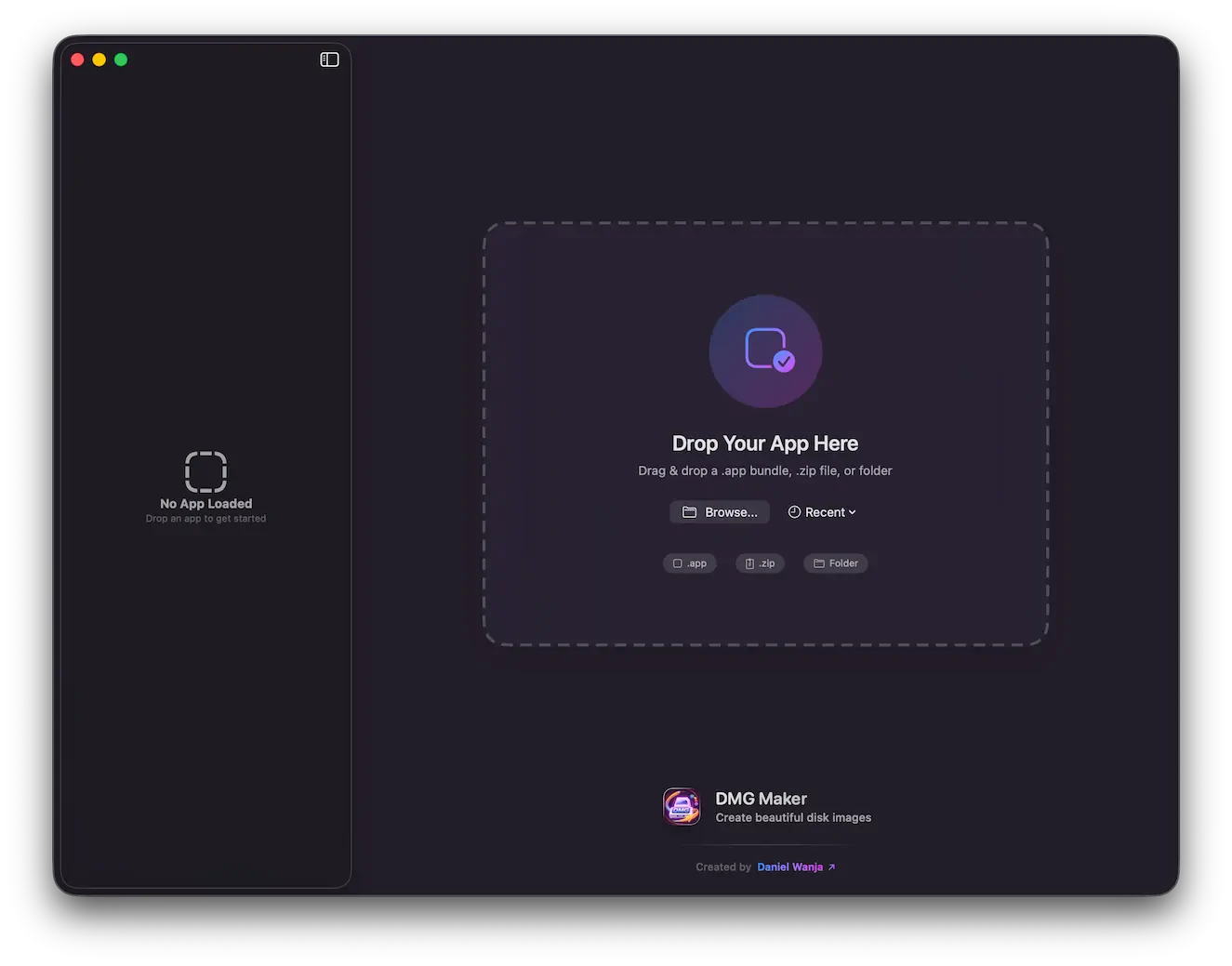
- Drag-and-Drop Input: Drop
.appbundles,.ziparchives, or folders directly into the app - Intelligent Parsing: Automatically extracts app name, version, bundle identifier, and icon from
Info.plist - Pixel-Perfect Preview: What you see in the app is exactly what users see when they open your DMG
- One-Click Export: Generate professional DMGs with a single click
Background Design System
DMGMaker includes a sophisticated background generation system with four built-in styles:
- Gradient: Classic linear gradients with colors extracted from your app icon
- Glass (Glassmorphism): Modern frosted glass effect with blur orbs
- Solid: Simple solid color backgrounds
- Mesh Gradient: Beautiful overlapping radial gradients for a modern look
Each style automatically adapts to your app's color palette by extracting dominant colors from the app icon using Core Image's CIAreaAverage filter.
Apple Intelligence Integration
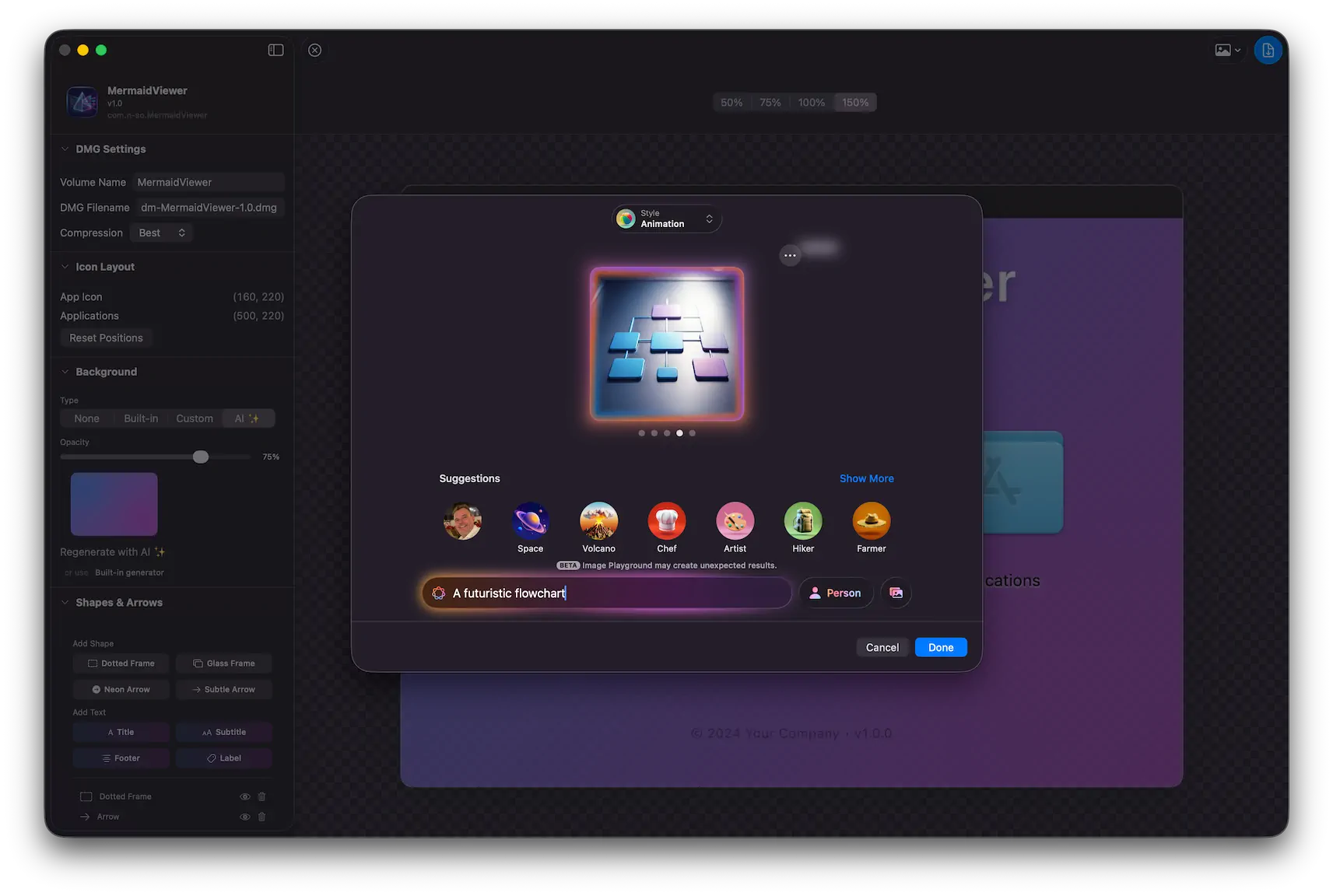
On macOS 26.0 and later, DMGMaker integrates with Apple's Image Playground API to generate AI-powered backgrounds. Simply click the AI button, and the app will use your app icon and name as concepts to create a unique, themed background.
Canvas Shapes & Annotations
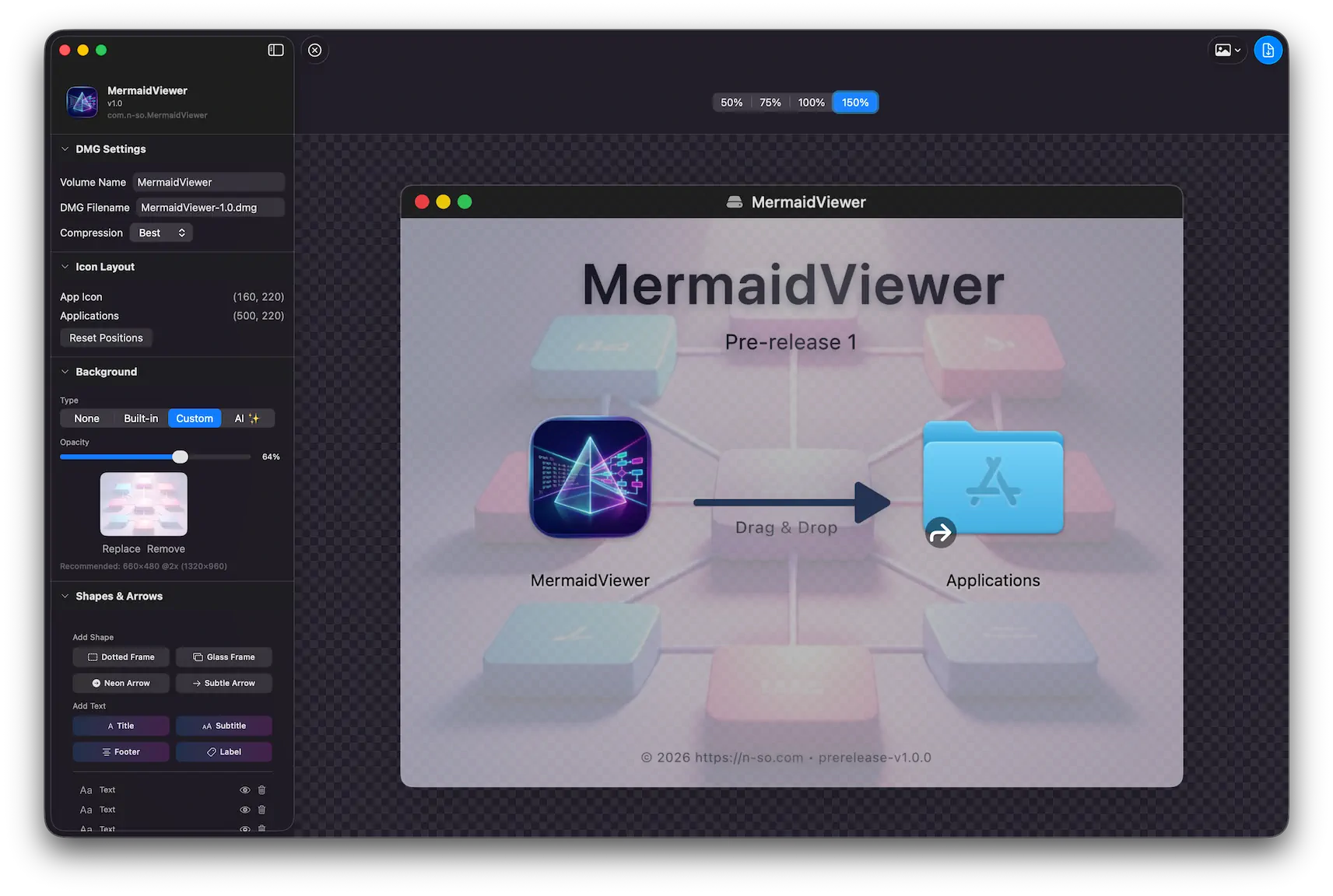
The app includes a complete shape editor for adding visual elements to your DMG backgrounds:
- Rectangles & Rounded Rectangles: With customizable corner radius
- Dotted Frames: Perfect for indicating drop zones
- Arrows: Straight arrows with multiple head styles (triangle, chevron, rounded)
- Text Labels: With gradient fills, shadows, glow effects, and custom typography
Each shape supports:
- Fill colors with opacity
- Stroke styles (solid, dotted, dashed)
- Glow effects
- Drop shadows
Text Styling
The text system is particularly powerful:
- Gradient text fills with presets like Silver Metal, Gold Metal, Rose Gold, and Copper
- Font customization: family, weight (ultra light to black), size
- Typography controls: tracking (letter spacing), line height
- Effects: shadow, glow, stroke outline
- Alignment: left, center, right, justified
Template System
Save your designs as reusable templates:
- Store window size, background settings, icon positions, and shapes
- Auto-match templates by bundle identifier
- Quick-apply to new projects
Export Options
- DMG Export: Create compressed disk images with multiple compression levels:
- None (read-write, UDRW format)
- Fast (zlib compression, UDZO format)
- Best (lzfse compression, ULFO format)
- PNG Export: Export backgrounds as high-resolution PNG files (with or without icons)
- Project Files: Save and load
.dmgmakerproject files
Quick Look Preview
DMGMaker includes a Quick Look extension that lets you preview .dmgmaker project files directly in Finder. Press Space on any project file to instantly see:
- The full DMG preview with background, icons, and shapes
- App name and version information
- No need to open the app just to remember what a project looks like
This makes managing multiple DMG projects effortless—browse through your saved designs without leaving Finder.
Note: The Quick Look extension currently works when running DMGMaker from Xcode. I'm still figuring out how to make it work properly when the app is distributed outside of the development environment—stay tuned for updates.
Technical Deep Dive
Architecture
DMGMaker follows the MVVM (Model-View-ViewModel) pattern:
Models/
├── AppBundle.swift        # Parsed app bundle metadata
├── CanvasShape.swift      # Shape definitions and styling
├── DMGProject.swift       # Project state and configuration
└── DMGTemplate.swift      # Template definitions

ViewModels/
└── DMGProjectViewModel.swift  # Main business logic

Services/
├── AIBackgroundGenerator.swift     # Apple Intelligence integration
├── AppBundleParser.swift           # Info.plist parsing
├── BuiltInBackgroundGenerator.swift # Core Image backgrounds
├── CompositeBackgroundRenderer.swift # Final image composition
├── DMGBuilder.swift                # DMG creation orchestration
├── DSStoreWriter.swift             # Finder metadata writing
├── FileAccessManager.swift         # Sandbox file access
└── TemplateManager.swift           # Template persistence
DMG Creation Pipeline
The DMG creation process is a multi-step pipeline:
- Create Temporary DMG: Use
hdiutil createto make a read-write HFS+ disk image - Mount Volume: Attach the DMG using
hdiutil attach - Copy Contents: Copy the app bundle and create the Applications symlink
- Render Background: Composite background + shapes + text into a single PNG
- Style Finder Window: Use AppleScript to configure icon positions, window size, and background
- Unmount: Detach the volume
- Compress: Convert to final format using
hdiutil convert - Verify: Run
hdiutil verifyto ensure integrity
private func createTemporaryDMG(at path: URL, volumeName: String, size: Int) async throws {
    // Sanitize volume name - remove special characters that cause issues
    let sanitizedVolumeName = volumeName
        .replacingOccurrences(of: "/", with: "-")
        .replacingOccurrences(of: ":", with: "-")
        .trimmingCharacters(in: .whitespacesAndNewlines)

    // Create a read-write HFS+ DMG
    // hdiutil create -size 500m -fs HFS+ -volname "VolumeName" temp.dmg
    try await runHdiutil([
        "create",
        "-size", "\(size)m",
        "-fs", "HFS+",
        "-volname", sanitizedVolumeName.isEmpty ? "Install" : sanitizedVolumeName,
        path.path
    ])
}

private func mountDMG(at path: URL) async throws {
    // hdiutil attach temp.dmg
    try await runHdiutil(["attach", path.path, "-nobrowse"])
}
The Finder Window Challenge
One of the trickiest parts of DMG creation is getting the Finder window to display correctly. The app uses AppleScript to configure the window:
tell application "Finder"
    tell disk "VolumeName"
        open
        tell container window
            set current view to icon view
            set toolbar visible to false
            set statusbar visible to false
            set sidebar width to 0
        end tell
        set theViewOptions to the icon view options of container window
        set arrangement of theViewOptions to not arranged
        set icon size of theViewOptions to 128
        set background picture of theViewOptions to file ".background:background.png"
        set position of item "MyApp.app" to {160, 220}
        set position of item "Applications" to {500, 220}
        set the bounds of container window to {100, 100, 760, 608}
        close
        open
        update without registering applications
    end tell
end tell
Background Generation with Core Image
The built-in background generator uses Core Image filters extensively:
// Generate gradient background
let filter = CIFilter.linearGradient()
filter.point0 = CGPoint(x: 0, y: size.height)
filter.point1 = CGPoint(x: size.width, y: 0)
filter.color0 = CIColor(color: startColor)
filter.color1 = CIColor(color: endColor)

// Create blur orbs for glassmorphism
let orbFilter = CIFilter.radialGradient()
let blurFilter = CIFilter.gaussianBlur()

// Add noise texture for premium feel
let noiseFilter = CIFilter.randomGenerator()
Color Extraction
To make backgrounds match the app's theme, DMGMaker extracts dominant colors from the app icon:
func extractDominantColors(from image: NSImage, count: Int = 4) -> [NSColor] {
    // Sample from multiple regions
    let samplePoints = [(0.25, 0.25), (0.75, 0.25), (0.25, 0.75), (0.75, 0.75), (0.5, 0.5)]

    for point in samplePoints {
        // Use CIAreaAverage to get mean color in region
        let filter = CIFilter.areaAverage()
        filter.inputImage = ciImage
        filter.extent = sampleRect
        // Extract RGBA values...
    }

    // Remove similar colors to ensure variety
    return removeSimilarColors(colors)
}
Shape Rendering
Shapes are rendered in layers using SwiftUI's Canvas API, then composited with the background for export:
// Arrow rendering with proper head geometry
func drawArrow(context: GraphicsContext, geometry: ArrowGeometry, style: ShapeStyle) {
    var path = Path()

    // Calculate arrow head points based on angle
    let angle = geometry.angle
    let headSize = geometry.headSize

    // Shaft
    path.move(to: geometry.start)
    path.addLine(to: shaftEnd)

    // Arrow head (triangle, chevron, or rounded)
    switch geometry.headStyle {
    case .triangle:
        path.move(to: geometry.end)
        path.addLine(to: leftPoint)
        path.addLine(to: rightPoint)
        path.closeSubpath()
    // ...
    }

    // Apply glow effect
    if style.glow.isEnabled {
        context.addFilter(.shadow(color: glowColor, radius: style.glow.radius))
    }

    context.stroke(path, with: .color(style.stroke.color.color))
}
Project File Format
DMGMaker uses a JSON-based project format (.dmgmaker):
struct DMGMakerDocument: Codable {
    var project: DMGProject
    var formatVersion: Int = 2
}
The format stores:
- All project settings (window size, icon positions, etc.)
- Background image as compressed PNG
- Shape definitions with full styling
- Template associations
Notably, the app icon is not saved in the file—it's re-extracted from the app bundle on load, keeping file sizes small.
Development Process
SwiftUI for macOS
Building a complex macOS app with SwiftUI was both rewarding and challenging. Some highlights:
What worked well:
NavigationSplitViewfor the sidebar layout- Canvas API for custom drawing
@Publishedproperties for reactive UI updates- Drag-and-drop with
NSItemProvider
Challenges:
- Managing focus state for text editing
- Coordinate space conversions between views
com.apple.security.app-sandboxrestrictions when executing shell commands
Sandboxing Considerations
DMGMaker needs to:
- Read dropped app bundles
- Access the Applications folder (for icon extraction)
- Write to user-selected locations
- Execute
hdiutiland AppleScript
This required careful entitlement configuration and the FileAccessManager service to handle bookmark persistence.
Preview Accuracy
The hardest part was ensuring the preview exactly matches the final DMG. Key insights:
- Title bar height: Finder windows have a 28pt title bar that affects content area calculations
- Icon positioning: Finder positions icons by their center, not top-left corner
- Label offset: The icon label adds to the total height, requiring position compensation
- Scale factors: Retina backgrounds need 2x rendering, but icon positions are in 1x coordinates
What's Next
Future enhancements I'm considering:
- Performance improvements
- Lot's of small bugs
- Curved Bézier arrows
- Blur/frosted glass effects on shapes fix (it's different in preview than in .dmg)
- CLI companion for CI/CD integration 🚀
- Code signing and notarization guidance
Conclusion
Building DMGMaker was a journey through many macOS technologies: SwiftUI, Core Image, AppleScript, hdiutil, and even Apple Intelligence. The result is an app that takes the pain out of DMG creation while giving developers full creative control over their app's first impression.
If you're shipping macOS apps outside the App Store, I hope DMGMaker makes your life a little easier—and your disk images a lot more beautiful.
DMGMaker is built with SwiftUI for macOS 15+ (with Apple Intelligence features requiring macOS 26+).
Daniel Wanja is a developer and founder of Nouvelles Solutions, Inc. He builds native macOS apps as part of his ongoing exploration of AI-assisted software development.